Rainbow Six Siege PC Settings Guide: Graphics, Audio, and Mouse Config for Competitive Play
Rainbow Six Siege has never been the typical shooter where settings are “just preference”. On PC, you need to spot angles quickly, hear when a defender rotates above you, and know how reliably your crosshair lands on a pixel peek. A pretty game is nice. A readable, responsive game wins rounds.
That matters even more in competitive Siege, where gunfights often happen through tiny gaps, tight doorways, bullet holes, soft walls, and half-second sound cues.
Many players spend hours tweaking anti-aliasing, shadows, and texture quality, then forget that audio and mouse settings are just as critical as graphics in competitive R6 Siege, as SkyCoach explains. Here’s how mastering your PC settings can lead you to the top of R6 Siege:
Why PC Settings Matter So Much in Rainbow Six Siege
Siege is slower than many arena shooters, but it is not forgiving. One wrong audio read can get you swung from behind. One overblown visual effect can hide a head. One sensitivity that feels fine in casual can fall apart when you need to hold a pixel angle for 40 seconds.
Good settings help with three things:
- Performance: Stable FPS and low input delay make your aim feel more immediate.
- Clarity: Cleaner visuals help you spot operators, drones, traps, and small movement.
- Consistency: Sensible mouse and audio settings reduce panic adjustments mid-round.
Ubisoft’s current PC requirements prove that Siege is no longer the ultra-light game everyone remembers.
Best Graphics Settings for Competitive R6 Siege
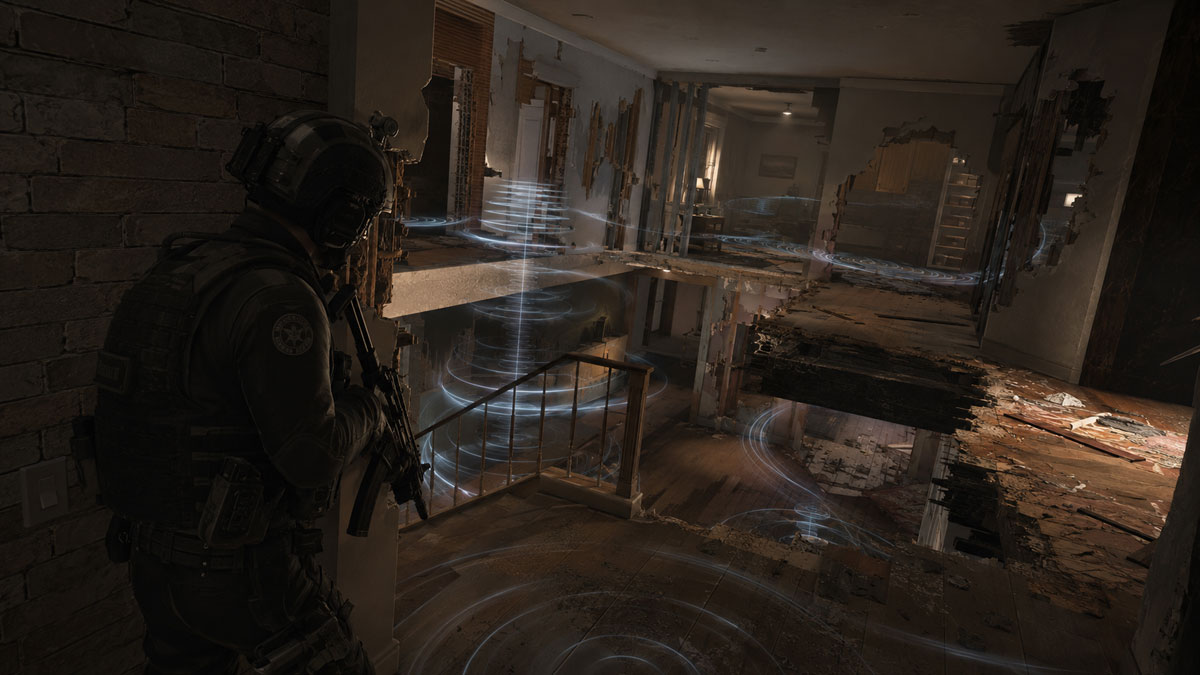
The goal is not to make Siege ugly – it’s to remove visual noise while retaining enough detail to recognise enemies, gadgets, and the map structure quickly. You want the game to look clean, sharp, and predictable.
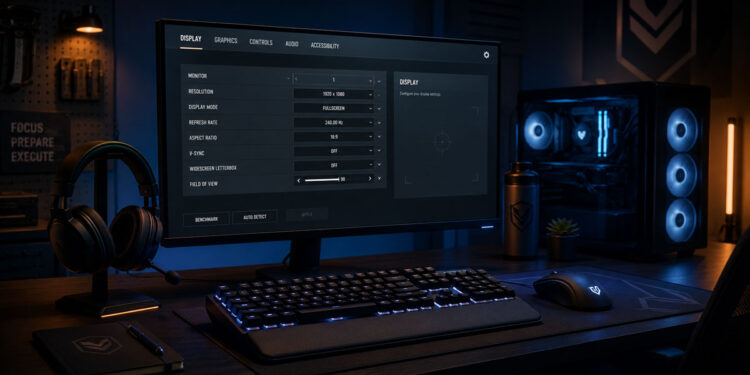
| Setting | Recommended Option | Why It Helps |
|---|---|---|
| Display Mode | Fullscreen | Usually gives better performance and lower input delay |
| Resolution | Native monitor resolution | Keeps targets sharp and readable |
| Refresh Rate | Highest available | Makes movement and aiming smoother |
| VSync | Off | Reduces input delay |
| Field of View | 84–90 | Improves awareness without extreme distortion |
| Texture Quality | Medium or High | Helps readability if you have enough VRAM |
| Texture Filtering | 8x or 16x | Improves surface clarity at distance |
| LOD Quality | High | Keeps objects and operators clearer at range |
| Shading Quality | Low | Reduces unnecessary visual cost |
| Shadow Quality | Medium | Keeps useful shadow information without heavy performance loss |
| Reflection Quality | Low | Mostly visual fluff |
| Ambient Occlusion | Off | Removes dark visual clutter |
| Lens Effects | Off | Avoids glare and distraction |
| Zoom-In Depth of Field | Off | Keeps ADS view clear |
| Anti-Aliasing | Off or T-AA Low | Depends on how jagged your image looks |
FPS Should Come Before Pretty Lighting
Lowering graphics to play the game at a stable FPS is far more important than trying to get it to run pretty with lots of lighting. Reaching 240FPS in practice only to plummet in large explosions, or after heavy use of utilities or site clearing, is completely counterproductive to competitive play. Turning down Shadows, Reflections, Ambient Occlusion, and Lens Effects would be a good starting point, followed by lowering Anti-Aliasing, if necessary to achieve frame rate, whilst keeping texture quality high where possible, given the GPU’s VRAM.
Field of View: Wider Is Useful, But Do Not Overdo It
A higher FOV lets you see more of a room, which is very useful for clearing corners. Most players have an FOV in the mid-to-high 80s – a good starting point is 84 FOV for a balanced view, or 90 FOV for wider peripheral vision. Test both in the Training Facility, at the Shooting Range, or in casual matches before using them in Ranked.
Best Audio Settings for Competitive R6 Siege
Small sounds, typically masked by very loud ones, should be amplified to enhance the game’s competitiveness.
Night Mode vs TV vs Hi-Fi
Dynamic range is how loud sounds compare to one another and how they are amplified or attenuated. The Hi-Fi setting gives the biggest range, making things sound most immersive. But in competitive play, the smallest sounds can mean victory or defeat, so in Siege, it is often better for movement sounds, etc., to come through clearly above background noise. This is where Night Mode comes in.
Do Not Rely on Virtual Surround
Many gaming headsets offer virtual surround, but Siege often works best with clean stereo output. Extra surround processing can make the game feel wider, but it may also blur the exact direction of footsteps or movement.
Try disabling the surround effect on your gaming headset and test the stereo sound in Siege for a few matches. Instead of listening for “someone nearby,” you have to listen for surface, distance, timing, and check your crosshair against what your teammates give as information.
Best Mouse Settings for Competitive R6 Siege
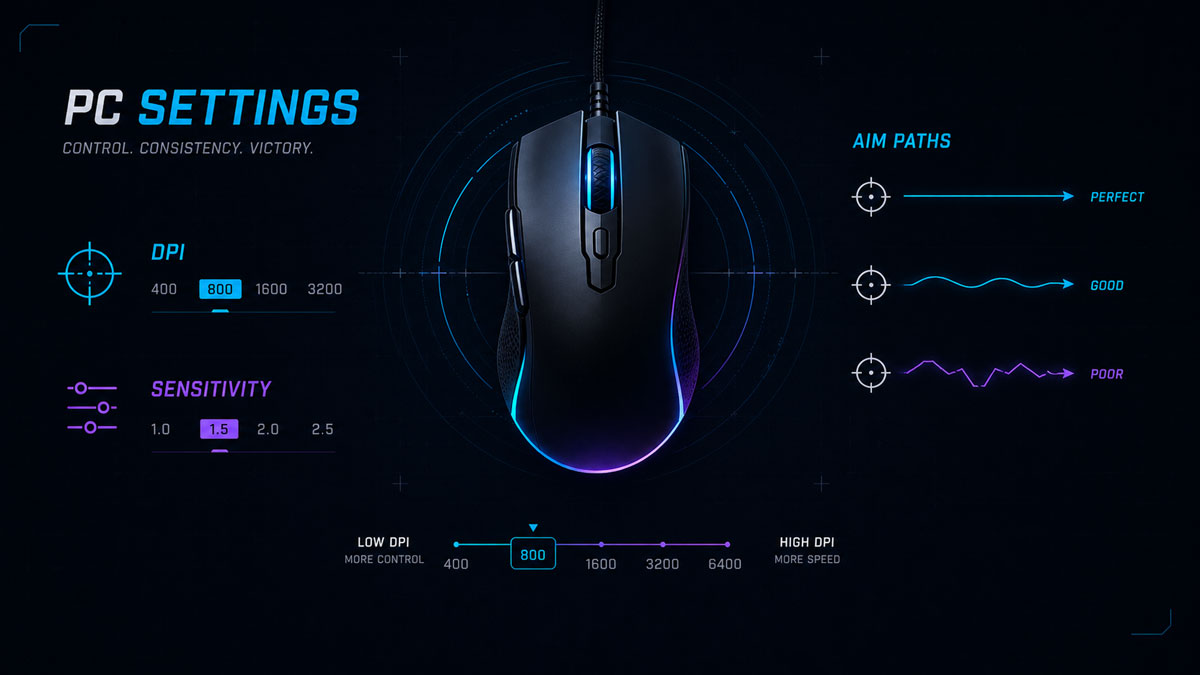
A lot of people spend way too much time tweaking their mouse settings, thinking that if they can just mimic the settings of their favourite pro player, they will instantly become better at the game. The reality is that the settings of a pro player are not something that can be learned by copying and pasting into your own game.
The best way to find the right settings for you is to experiment and find a setting that allows you to clear out rooms, hold angles, manage your gun’s recoil, and make small crosshair adjustments without your hand getting in the way.
Most competitive PC players play with low-to-medium sensitivity because Siege has many small target adjustments, not because they need to flick 180 degrees between two corners of the map constantly.
DPI and Sensitivity: Keep It Repeatable
If your crosshair overshoots the head of enemies, it is likely that your sensitivity is too high. On the other hand, if you have to lift your mouse up every few seconds to clear out corners, then your sensitivity is likely too low and not allowing you to clear out spaces as efficiently as you could with a higher sensitivity.
You also need to take into account your desktop space to make low sensitivity work properly. If you’re playing on a small desk, then low sensitivity will probably make you go backwards in terms of movement speed and accuracy instead.
ADS Sensitivity Needs Extra Attention
Siege uses different optics for different zoom levels, therefore, ADS sensitivity can become very inconsistent and weird if not properly tuned. The game has a built-in system for ADS sensitivity, a system that allows separate sensitivity values for different zoom levels. This is great because a 1.0x sight and a 6x scope do not feel the same.
For most players, making hip-fire movement as comfortable as possible while lowering ADS sensitivity just enough to allow precision when desired is the ideal setting. This will allow you to track a strafing enemy while scoped and they will not ‘slip’ out from under your reticle.
Final Thoughts: Build Settings Around Information
The best settings for the Rainbow Six Siege PC game are those that help to play Siege better. This means having a stable FPS so your aim is as immediate as possible, the best graphics to spot threats faster, and the right audio settings to better predict enemy movement. And finally, the right mouse settings so you can repeat your good mechanics from earlier rounds in future rounds.
It’s important to note that the best settings are relative to your personal hardware, whether it’s your computer, gaming mouse, gaming monitor, or your favourite gaming headset, as well as your favourite gaming mousepad and, more importantly, your role on the team. The goal with settings is to create a tiny advantage now and then to help win Rainbow Six Siege games.